
PIPCloud

Upload Supplier Invoice
Batch Process Multiple Invoices
Upload multiple invoices (PDF, photos or text files) at once. Suppliers will be automatically matched where possible.
Dashboard
Spend by month (last 12 months)
Invoice status
Top suppliers (last 90 days)
Recent invoices
Processed Invoices
Suppliers
Stock Items
Email Processing Log
Loading...
Bank Reconciliation
Upload Bank Statement
Import History
No imports yet
Transactions
Upload a bank statement to get started
Clients
No clients yet
Herd Health Reports
Loading…
Vets
Vets are matched by name to herd-report findings. Push from VetSCOPE or add here.
Loading…
User Management
Practice Groups
Users in the same group share one list of suppliers, stock items and branches. Adding a user to a group automatically merges their duplicate suppliers/stock items/branches (matched by identical name or code, ignoring case) into the group's existing entries. Invoices are never changed or moved — only the shared lists are combined.
▶ Terms & Conditions
Invoice Usage
AI Usage Statistics
Loading usage statistics...
▶ Processing Logs
Backups & Restore
Off-machine database backups plus per-user data bundles that can be restored individually without rolling back the whole production database. Stored in private Object Storage, accessible to master users only.
Per-user bundles
Bundles are grouped by user (newest first). Click a user row to expand/collapse their history. Restore into a new user is the safe default — the original user is untouched and a fresh login-disabled copy is created.
Restore audit trail
Every restore (new / merge / replace) is logged here with the bundle source, target user, the master who ran it, and the inserted / updated / skipped row counts.
Recent backup runs
Full database backups
PIPCloud User Guide
A quick guide to getting the most out of PIPCloud.
Contents
Uploading Invoices
 1
2
3
4
5
1
2
3
4
5
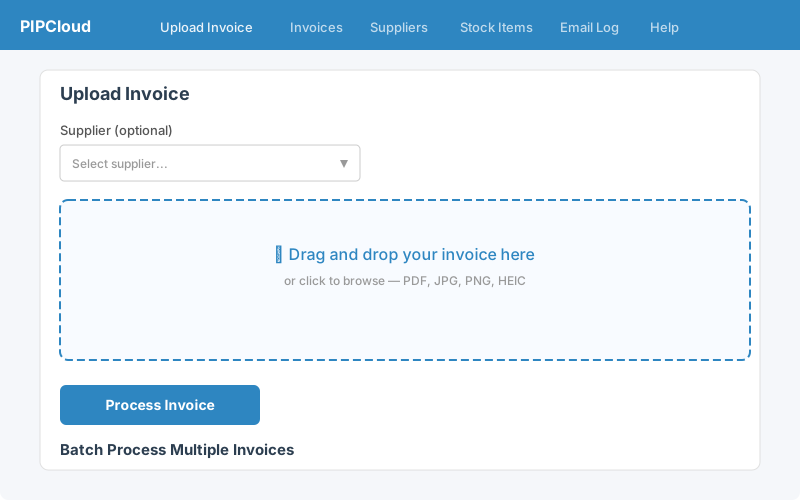
You can upload invoices in two ways:
Single Invoice
- Click Upload Invoice in the navigation bar.
- Optionally select a supplier from the dropdown. If left blank, PIPCloud will try to match the supplier automatically.
- Drag and drop a PDF or photo of your invoice, or click to browse for the file.
- Click Process Invoice. The AI will extract all the invoice data.
- Review the extracted data on screen before saving.
Batch Upload
- Scroll down on the Upload page to find Batch Process Multiple Invoices.
- Select multiple PDF or image files at once.
- Click Process All Invoices. Each file is processed individually and suppliers are matched automatically.
- A progress bar shows how many have been completed.
Emailing Invoices
The quickest way to get invoices into PIPCloud is to forward them by email.
How It Works
- Your account has a dedicated email address (shown in Account Settings under "Invoice Email Address").
- Forward any invoice email to that address. The PDF attachment will be automatically extracted and processed.
- The invoice appears in your Invoices list with a "Pending" status, ready for review.
What Works
- PDFs attached directly to the email.
- Photos (JPG, PNG) of invoices attached to the email.
- Forwarded emails with the original invoice attached (including nested .eml attachments).
- Multiple invoices in a single email — each attachment is processed separately.
- Emails with no subject line — these process just fine.
What Won't Work
- Invoices pasted into the email body (not as an attachment).
- Word documents, Excel files, or other non-PDF/image formats.
- Password-protected PDFs.
- Links to download invoices (the file must be attached).
Reviewing & Editing Invoices
 1
2
3
4
5
1
2
3
4
5
 1
2
3
4
5
6
1
2
3
4
5
6
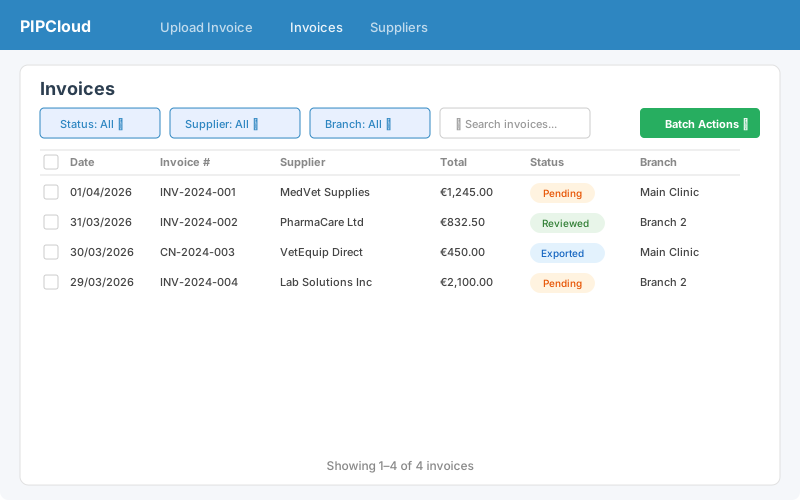
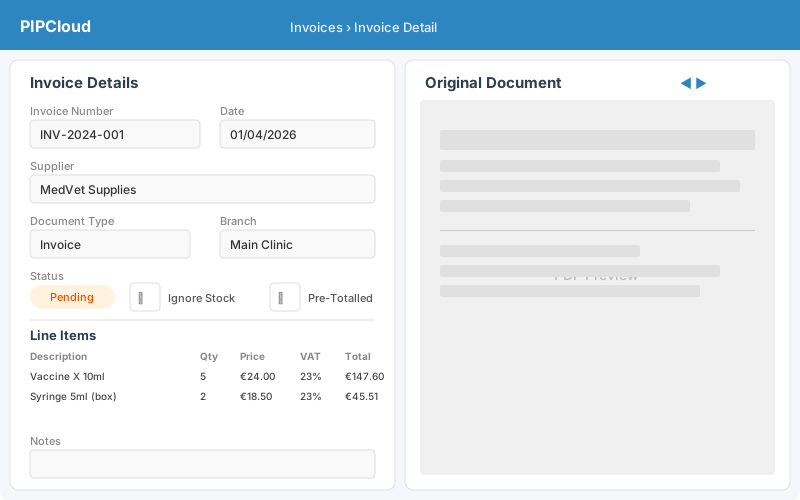
After an invoice is uploaded or emailed in, it appears with a Pending status. Here's how to review it:
- Click on any invoice in the list to open the detail view.
- The screen splits into two: invoice data on the left, and the original PDF on the right.
- Check the extracted data against the original document. You can edit any field by clicking on it.
- Use the navigation arrows at the top of the PDF pane to move between invoices without closing the view.
Key Fields
- Invoice Number & Date — Extracted automatically. Edit if incorrect.
- Document Type — Invoice or Credit Note. PIPCloud tries to detect this automatically.
- Supplier — Auto-matched where possible. Change by clicking the supplier field.
- Branch — Assign to a branch for filtering. Your default branch is applied automatically.
- Line Items — Each line shows description, quantity, unit price, and totals. Click any value to edit.
- Notes — Add a free-text note to any invoice. Tick "Include in export" to send the note to VetSCOPE.
Toggles
- Ignore Stock — When ticked, VetSCOPE will skip stock matching for this invoice.
- Pre-Totalled — When ticked, line totals won't be recalculated from qty x price (useful when the totals are already correct on the invoice).
Statuses
- Pending — Newly processed, awaiting review.
- Reviewed — You've checked it and it's ready to export.
- Exported — Already sent to VetSCOPE.
- Archived — Hidden from the default list view.
Importing in VetSCOPE
Once invoices have been reviewed in PIPCloud, they are imported into VetSCOPE from the Accounts Main Screen. The four vertical buttons in the top right corner of the Accounts screen handle importing and exporting:
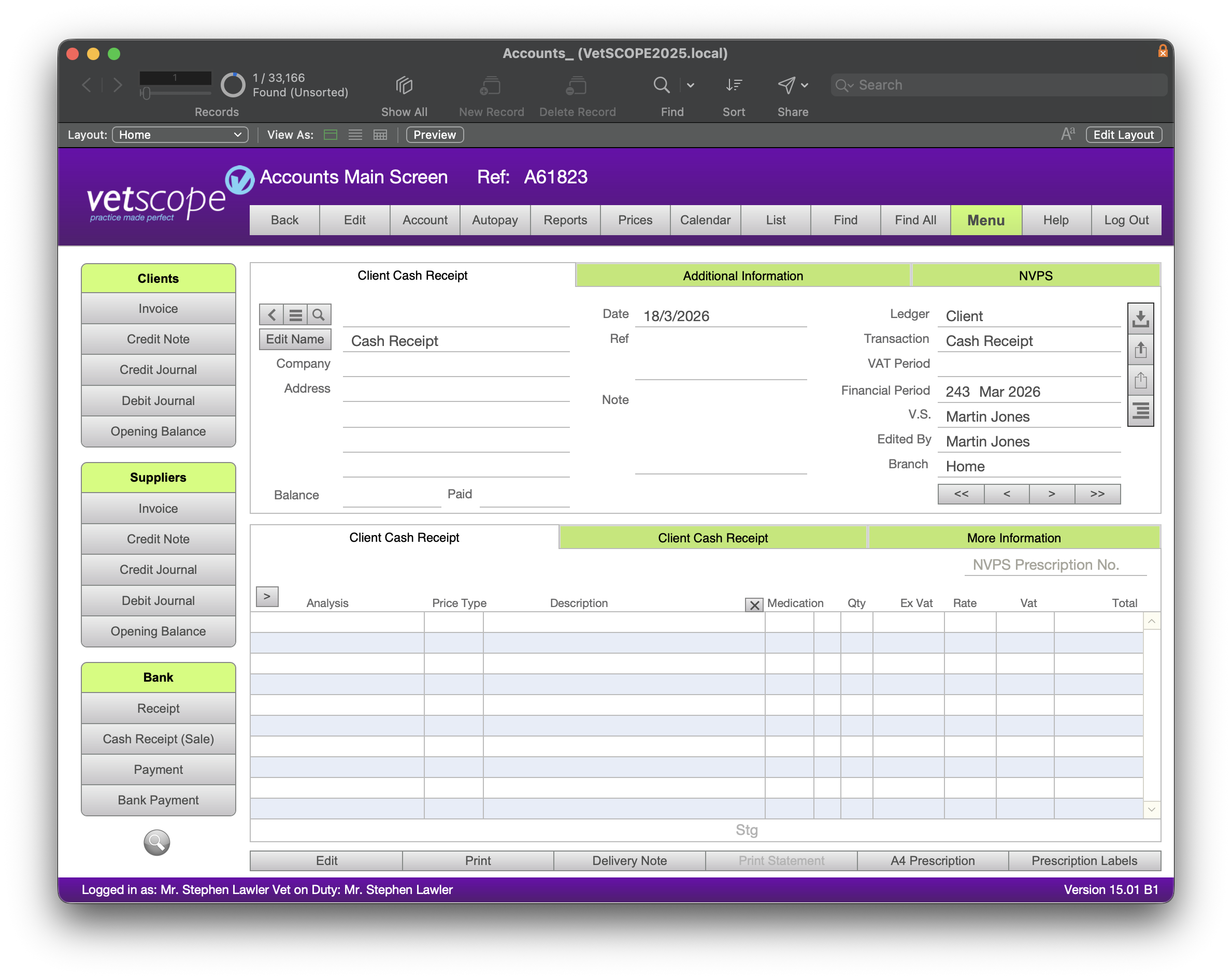
The Four Buttons (Top Right)
- Import from PIPCloud — Pulls reviewed invoices from PIPCloud into VetSCOPE. This is how invoice data flows from PIPCloud into your accounts system.
- Export Prices — Sends your stock item prices from VetSCOPE to PIPCloud. You can choose to export all prices or just recent changes, keeping PIPCloud's price list up to date.
- Export Suppliers or Clients — Sends your supplier and client lists from VetSCOPE to PIPCloud. Choose all or recent to keep PIPCloud's supplier and client data in sync.
- Export Branches — Sends your branch/location names from VetSCOPE to PIPCloud so invoices can be assigned to the correct branch.
Importing Invoices from PIPCloud
- In PIPCloud, review your invoices and ensure the data is correct.
- In VetSCOPE, go to the Accounts Main Screen.
- Click the Import from PIPCloud button (top right).
- VetSCOPE pulls the reviewed invoices and creates the corresponding account entries.
- Once imported, the invoice status in PIPCloud changes to "Exported" and a VS Ref badge appears.
Managing Suppliers
 1
2
3
4
5
1
2
3
4
5
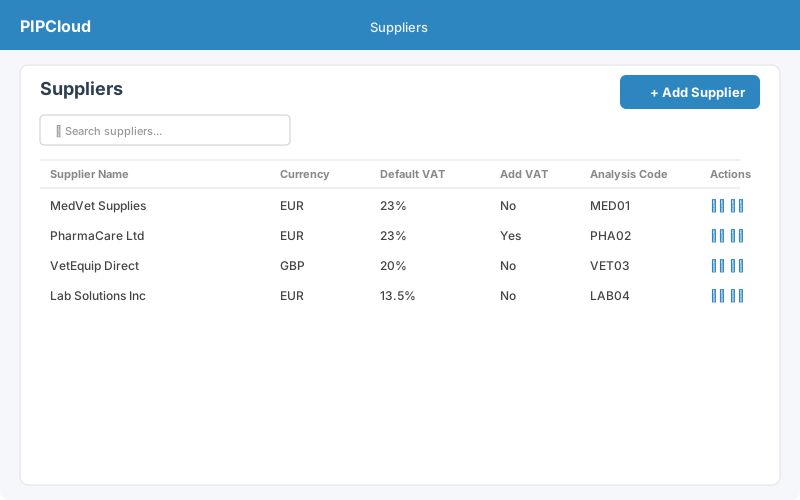
Suppliers are the companies you receive invoices from. PIPCloud uses supplier settings to improve how invoices are processed.
Adding a Supplier
- Go to Suppliers in the navigation bar.
- Click Add Supplier.
- Enter the supplier name and configure their preferences.
Supplier Settings
- Currency — The currency this supplier invoices in (EUR, GBP, USD).
- Default VAT Rate — Applied to line items when the invoice doesn't specify a rate.
- Add VAT to Totals — Whether line totals should include or exclude VAT.
- Analysis Codes — Custom codes used by your accounting system.
Stock Items
 1
2
3
4
1
2
3
4
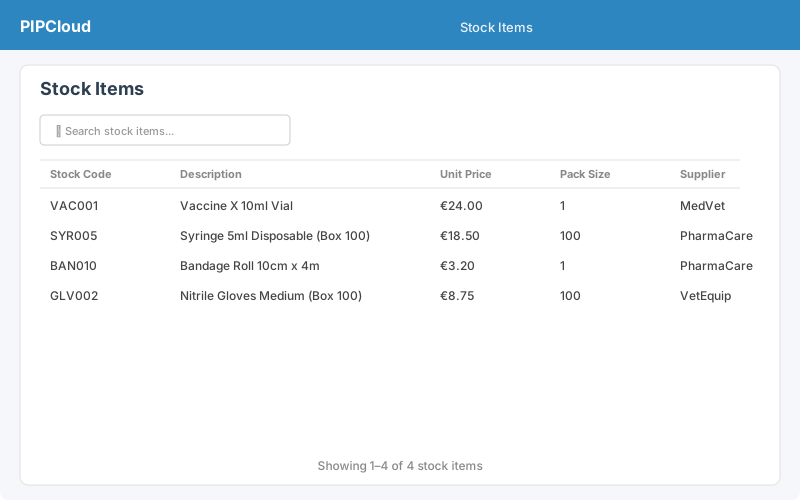
Stock items are the products and services that appear on your invoices. PIPCloud matches invoice line items to your stock list using fuzzy matching.
- Go to Stock Items to view and manage your stock list.
- Stock items can be pushed directly from VetSCOPE, or added manually.
- When an invoice is processed, each line item description is compared against your stock list and the best match is suggested.
- You can change the matched stock item on the invoice detail screen if the automatic match isn't right.
Branches
 1
2
3
4
5
1
2
3
4
5
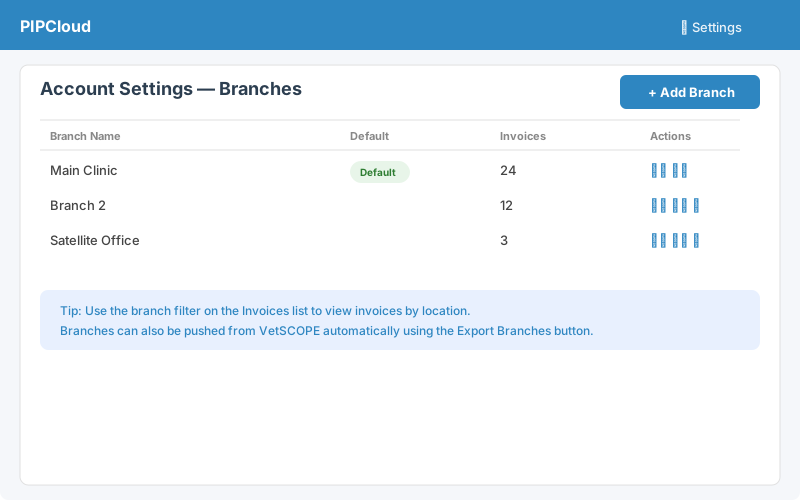
If your business has multiple locations, branches let you organise invoices by site.
- Manage branches in Account Settings.
- Set one branch as your default — new invoices are automatically assigned to it.
- Filter the invoice list by branch using the dropdown filter.
- Change an invoice's branch on the detail screen or in bulk using the batch actions.
- Branches can also be pushed from VetSCOPE automatically.
Email Log
 1
2
3
4
5
1
2
3
4
5
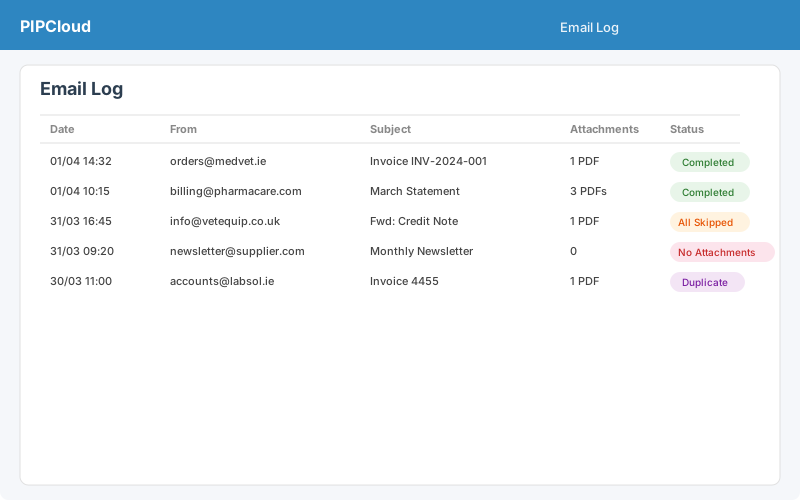
The Email Log tab shows every email received by PIPCloud and what happened to it.
Status Meanings
- Completed — Email processed successfully, invoices created.
- All Skipped — Attachments found but all were duplicates or had errors.
- No Attachments — No PDF or image files found in the email.
- Duplicate — This exact email was already processed.
- No User Match — The email was sent to an address not linked to any account.
Account Settings
 1
2
3
4
5
6
1
2
3
4
5
6
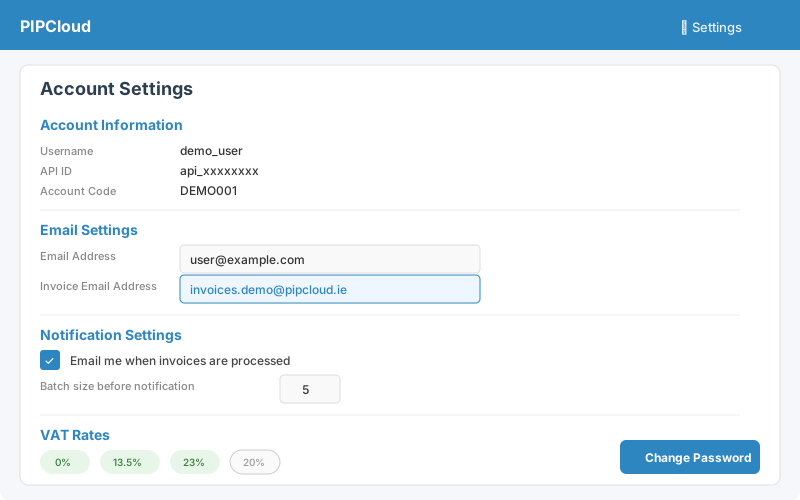
Click Account Settings in the top right to manage your account.
- Email Address — Used for password reset and invoice notifications.
- Invoice Email Address — The address to forward invoices to (set by your administrator).
- Notification Settings — Choose whether to receive email notifications when invoices are processed, and how many invoices to batch before sending a notification.
- VAT Rates — Control which VAT rates appear in dropdowns when processing invoices. Toggle standard rates (0%, 13.5%, 20%, 23%) on or off, and add custom rates if needed. Euro accounts default to 0%, 13.5%, and 23%; Sterling accounts default to 0% and 20%.
- Branches — Add, rename, delete, and set default branches.
- Change Password — Update your login password.
- Account Information — Your username, API ID, and account code.
Tips & Troubleshooting
Getting the Best Results
- Use clear, high-quality PDFs or photos. Blurry or low-contrast images may not extract well.
- Set up your suppliers before processing invoices — this improves auto-matching and applies the correct VAT and currency settings.
- Use the side-by-side PDF viewer to check extracted data against the original document.
- Use batch upload for multiple invoices from different suppliers — each one is matched independently.
Common Issues
- "No invoice attachments found" — The email didn't contain a PDF or image file. Make sure the invoice is attached, not just pasted into the email body.
- "Duplicate invoice number" — An invoice with the same number already exists. Check your invoice list to see if it's already there.
- Wrong supplier matched — Click the supplier field on the invoice detail screen to change it. Over time, the matching improves as you add more suppliers.
- Missing or incorrect data — The AI does its best but isn't perfect. Always review extracted data before exporting. You can click any field to edit it.
- Invoice not arriving via email — Check the Email Log tab for the reason. Common causes are: unrecognised attachment format, duplicate email, or email sent to the wrong address.
Keyboard Shortcuts
- Escape — Close the current modal or detail view.
Backups & Restore (master only)
How nightly backups work
- Every night a full
pg_dumpof the production database is gzipped and uploaded to private Object Storage atbackups/full/YYYY/MM/DD/…. - A separate per-user JSON bundle is written for every user at
backups/per-user/<userId>/…. Each bundle contains every row that user owns across invoices, suppliers, stock, clients, vets, branches, herd reports, audit logs, and bank reconciliation data. - Retention is automatic: daily backups are kept for 30 days, then weekly for 12 weeks, then monthly for 12 months. Older copies are pruned by the retention sweeper.
- Backups are encrypted at rest by Object Storage and only accessible to master users via the Backups page — never on a public URL.
Downloading a backup
- Open the Backups tab. Find the backup you want in either the "Full database backups" or "Per-user bundles" table.
- Click Download. The gzipped file streams directly to your browser. Full backups are
.sql.gz; per-user bundles are.json.gz.
Per-user restore vs full DB rollback
- A per-user restore only touches one tenant's data. The other users' work isn't affected. There are three modes:
- Restore into a new user (default, non-destructive) — creates a fresh, login-disabled account named like
Clare (restored 2026-05-07)with all of the bundle's data inserted under the new id. Impersonate it to compare side-by-side, then delete whichever account you don't want. - Merge into existing user — inserts only rows the target user doesn't already have (matched by natural key, e.g. invoice UUID, supplier name). Existing rows are kept untouched.
- Replace existing user — destructive. Deletes the target user's current rows in every backed-up table, then inserts from the bundle. Requires typing
REPLACEas a confirmation.
- Restore into a new user (default, non-destructive) — creates a fresh, login-disabled account named like
- Every restore is recorded in the invoice and herd-report audit logs with the master who triggered it, the source bundle path, the mode chosen, and (for new-user restores) the new user id.
- A full DB rollback is a different operation entirely — it rewinds the entire production database to a previous moment in time (Replit/Neon point-in-time recovery). Use this only when our own backups can't help and you've lost data across many tenants.
If you need a full database rollback
Per-user bundles can't help if the loss spans many users (e.g. an accidental table-wide DELETE). For that case, contact Replit Support and request a Neon point-in-time recovery to a specific UTC timestamp. Have the timestamp ready — PITR retention is short (typically 7 days).